
Roblox IDs Hub User Guide
1. What This Site Does
Roblox IDs Hub is an independent, third-party Roblox asset ID lookup site. It gathers publicly available Roblox image (Image / Decal) and audio (Audio / Sound) assets into a searchable library, so you can:
Search: find assets by keyword, category, or numeric ID;
Preview: view images directly, listen to audio online;
Copy: copy an asset's numeric ID with one click and paste it into Roblox Studio or any experience that supports the asset.
Data scale: 400,000+ images and 130,000+ audio entries, with AI-assisted data enrichment (descriptions, tags, categories) to improve discoverability.
⚠️ Important notice: Roblox IDs Hub has no affiliation, endorsement, or sponsorship with Roblox Corporation. All assets on this site belong to their respective creators. Whether an asset can be used in a given Roblox experience or Studio property depends on Roblox's own systems, asset permissions, and usage restrictions.
No registration required to search, browse, listen, and copy IDs; sign up and log in to unlock social features like favorites, comments, ratings, and shared collections.
2. Get Started in 30 Seconds: Find and Copy an ID
Whether you're looking for an image or an audio, the core flow is the same:
Search / Browse → Preview (view / listen) → Click Copy ID → Paste into Roblox
In the search box on the homepage or the relevant channel, enter a keyword (e.g.
anime,meme,explosion) or a numeric ID;Find the target asset in the results — images show thumbnails, audio can be played to preview;
Click the Copy ID button on the asset to copy the numeric ID to your clipboard (the button briefly changes to "Copied" and a toast appears);
In Roblox Studio, paste it into any property that supports asset references, in this format:
rbxassetid://YOUR_ID
💡 Whether this format is supported depends on the specific Studio property or experience you're using — please refer to Roblox's official requirements.
3. Site-Wide Navigation and Layout
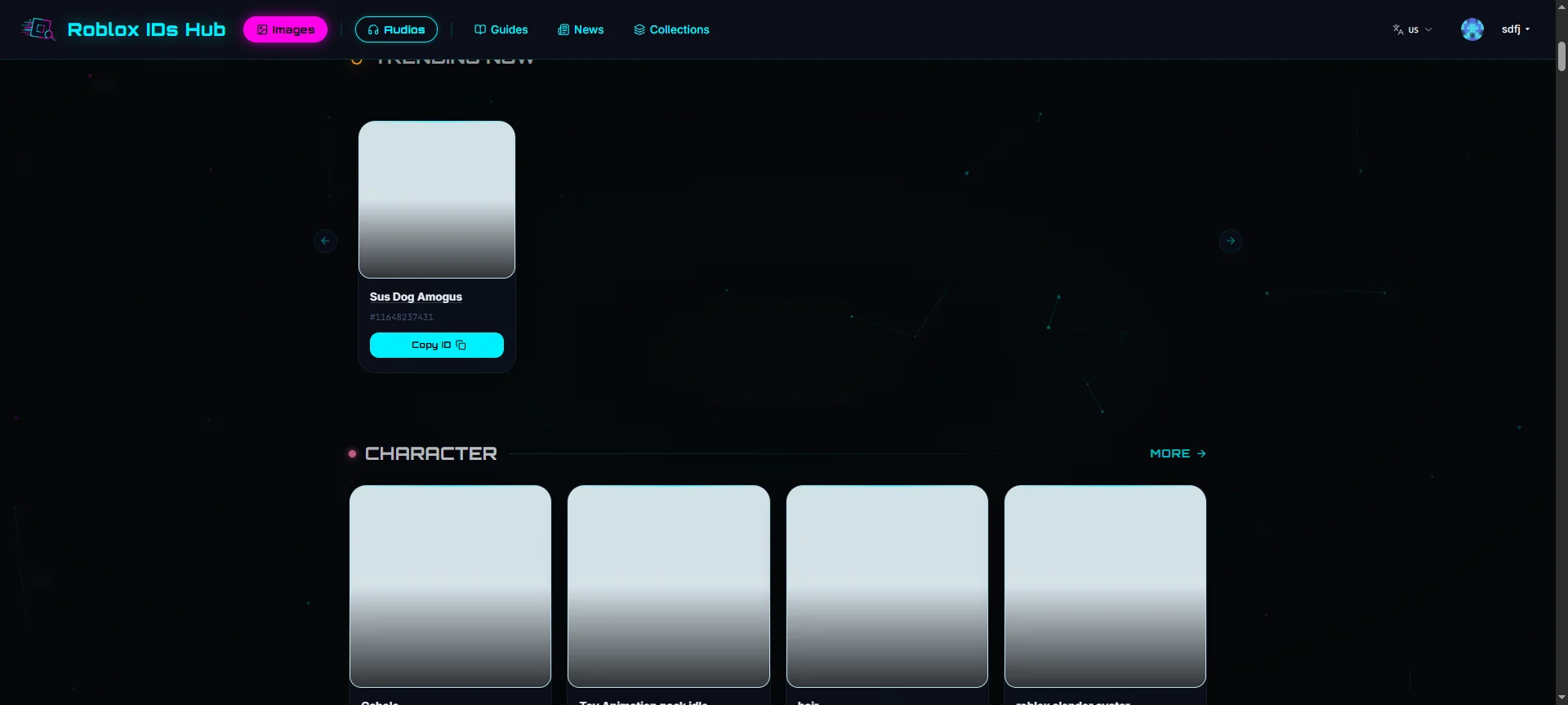
Top Navigation Bar
Area | Content |
|---|---|
Left | Site logo (click to return to homepage) |
Center main nav | Images (returns to homepage), Audios, Guides, News, Collections |
Right | Language switcher, Sign in / Sign up entry (when logged out) or avatar + username menu (when logged in) |
Account Menu When Logged In
Click your username in the top-right corner to expand the dropdown:
Personal Center →
/meMy Shares →
/me/sharesSettings →
/me/profileLogout
4. Image IDs (Images)
Images are the site's default channel — the homepage is the image channel.
4.1 Homepage /
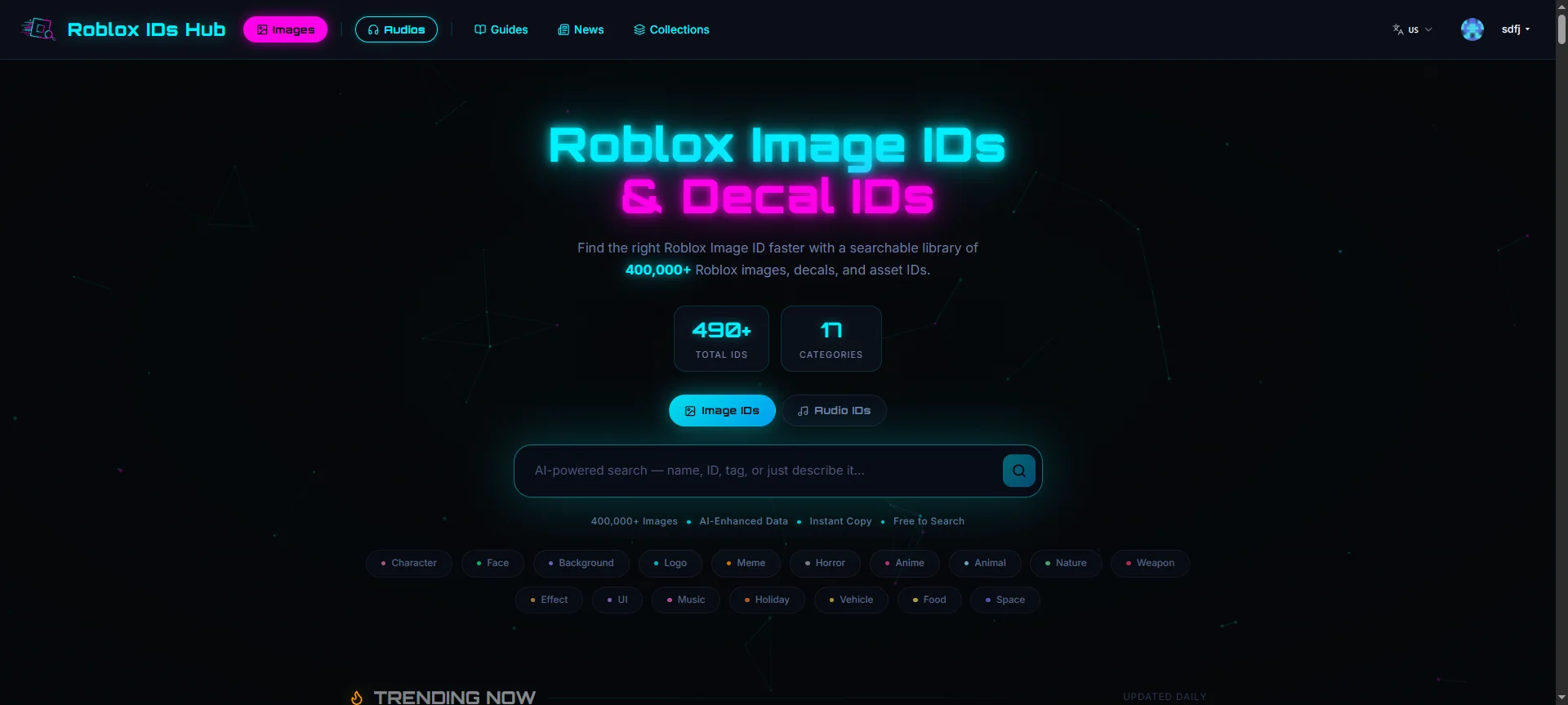
Every image card has a Copy ID button — click it to copy that image's Roblox ID; clicking the card itself opens the asset detail page (see Section 7).
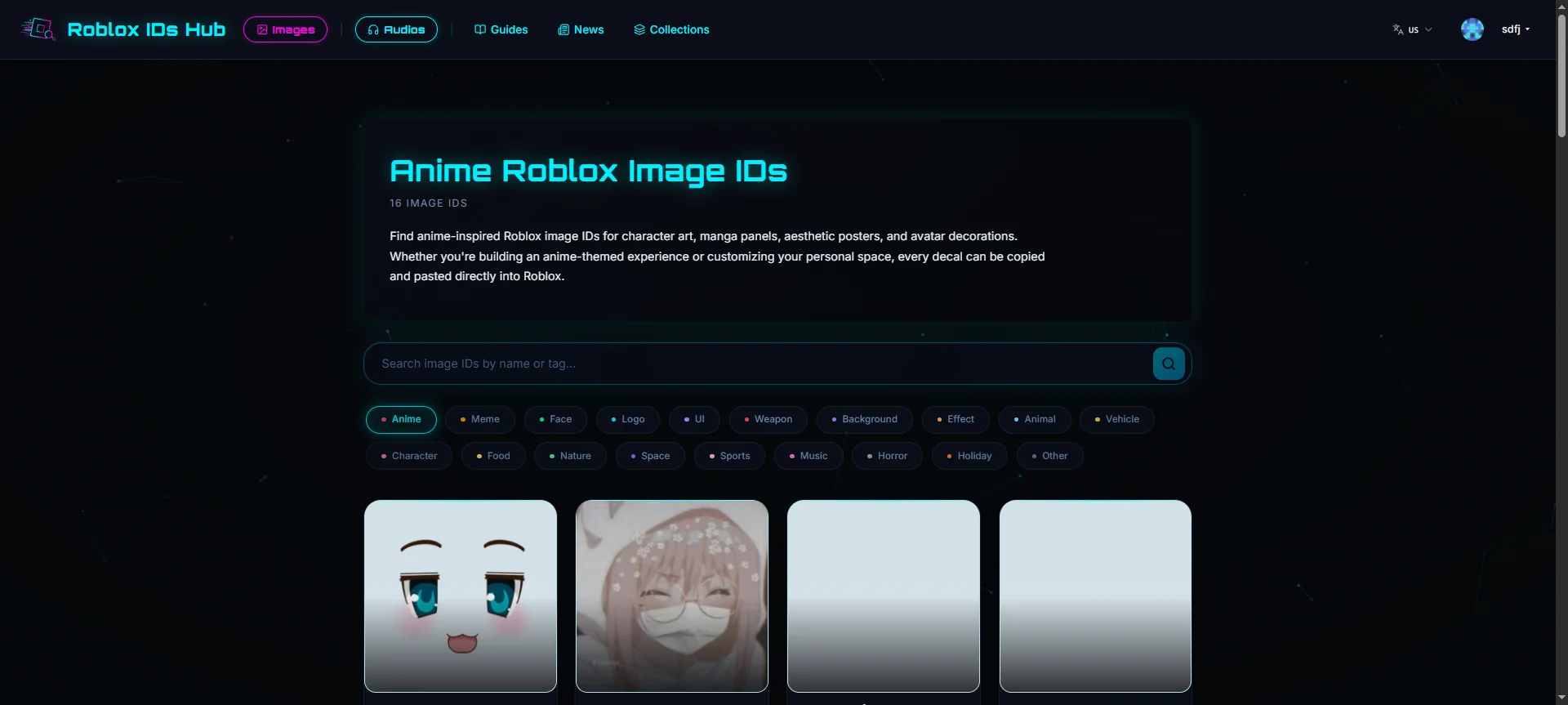
4.2 Image Category Landing Page /image/[category]
Browse images by category, e.g. /image/anime, /image/meme.
4.3 Image Detail Page
See Section 7, "Asset Detail Page".
5. Audio IDs (Audio)
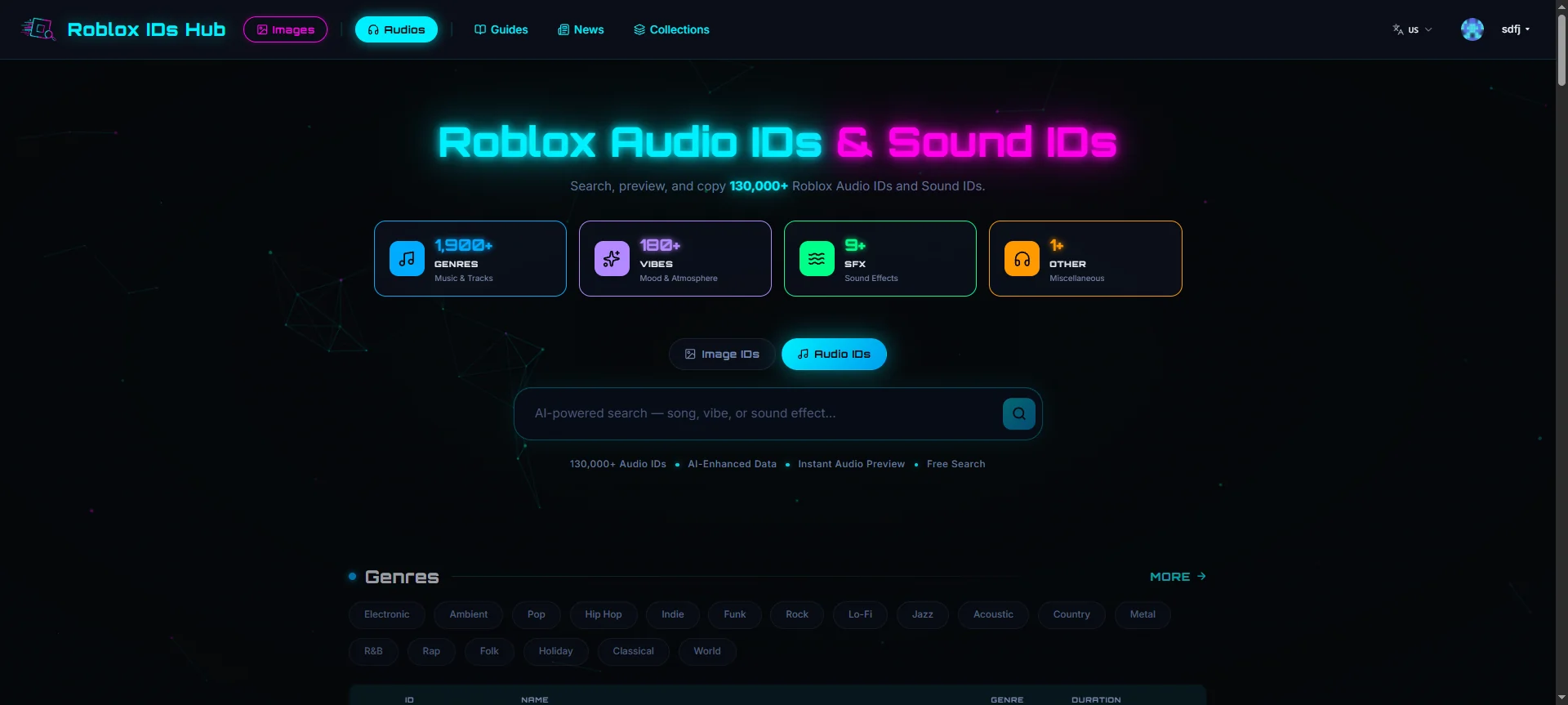
5.1 Audio Channel Homepage /audio
5.2 Audio List and Online Preview
Audio is presented as a table with columns: expand arrow, ID, name, Genre, duration, copy button.
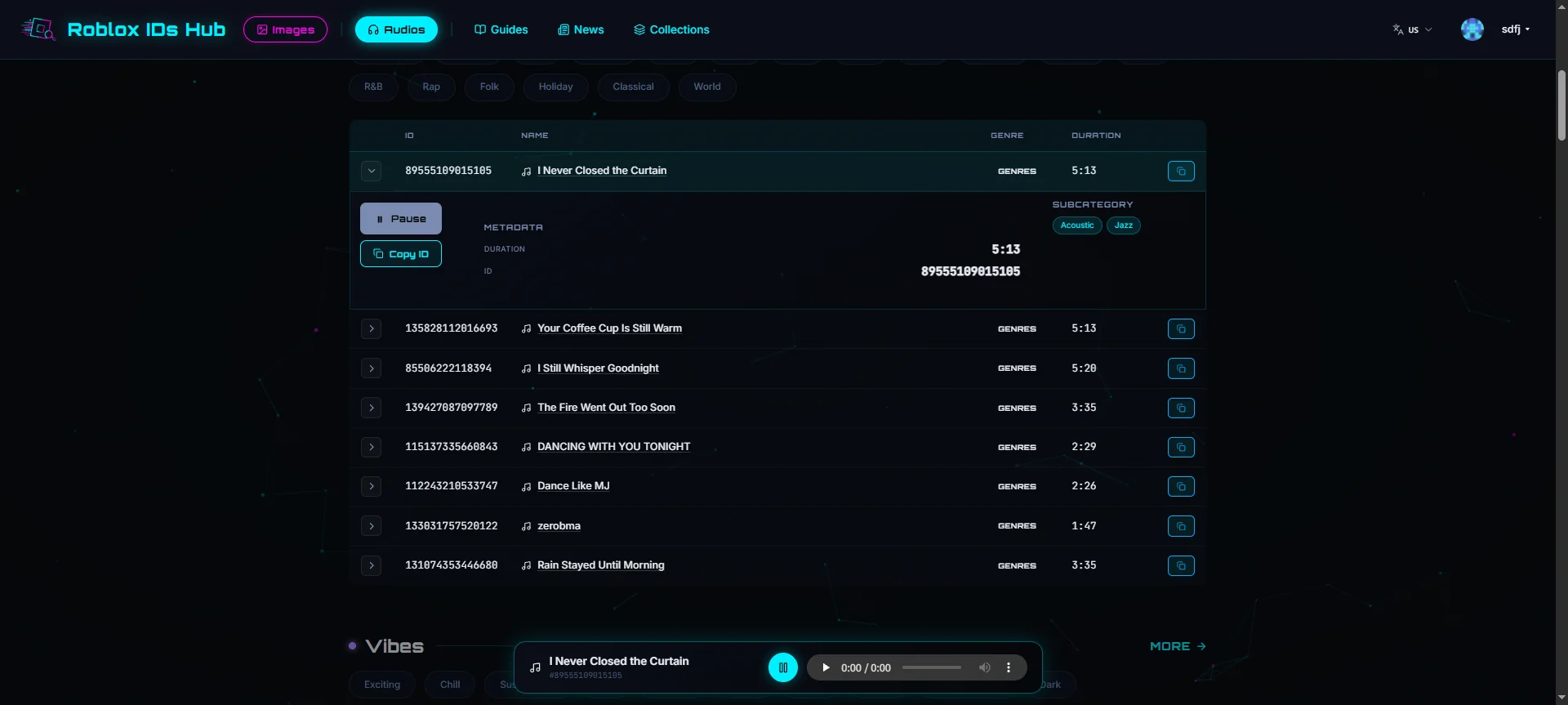
Click a row / arrow: expands that row's playback panel;
Click Play: starts the preview. The whole site shares a single bottom sticky player (sticky at the bottom of the screen) with a play/pause button and progress bar, showing the current track name and ID; switching tracks or leaving the page stops playback automatically;
Click Copy: copies that audio ID (a toast notification appears).
Note: some audio files are Roblox private assets and may not play online (playback fails), but their IDs can still be copied.
5.3 Audio Genre Landing Page /audio/[genre]
Three top-level genres: genres, vibes, sfx. E.g. /audio/genres, /audio/sfx.
Genre title + total count + description, audio-specific search box;
Genre navigation chips + subcategory filter chips (All + each subcategory);
Audio list table (preview, copy ID, shows duration / file size);
Load more → paginator; first-screen Popular block, FAQ, related genre navigation.
URL parameters:
Parameter | Description | Example |
|---|---|---|
| Subcategory (must belong to the current genre) |
|
| Page number |
|
If
?sub=doesn't belong to the current genre, it's ignored and falls back to the whole genre (no error); an invalid genre (not genres/vibes/sfx) returns 404.
5.4 Audio Detail Page
See Section 7, "Asset Detail Page". Audio detail pages additionally show technical info such as duration, Genre, subcategory, bitrate, file size, and sample rate.
6. Search
/search is the site-wide unified search results page, supporting both images and audio.
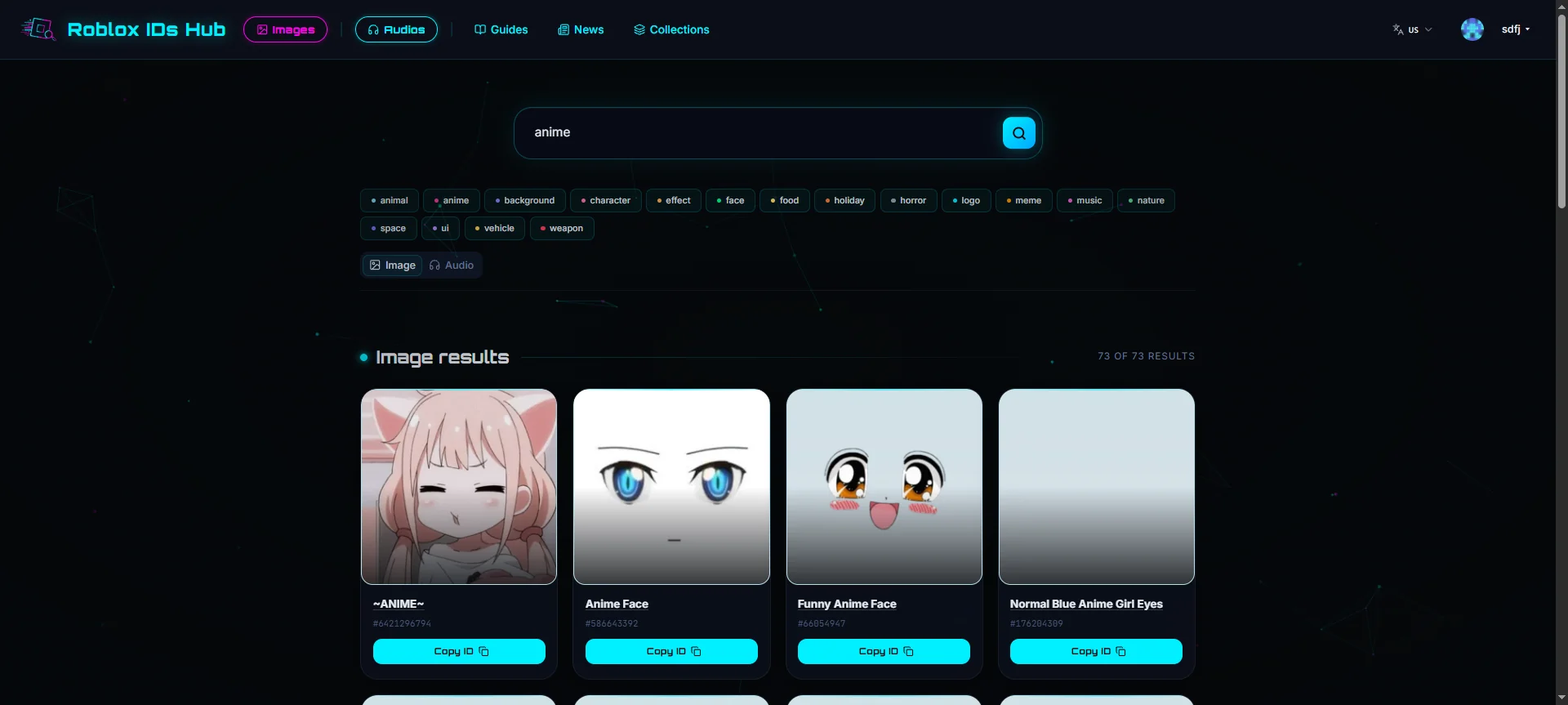
Search Box and Suggestions
Typing a keyword (≥2 characters) in any page's search box triggers live suggestions (with thumbnails and type labels);
With no input, recent searches are shown (stored in a local Cookie, clearable);
You can also enter a numeric ID directly for an exact lookup.
Filter Panel
The top of the results page offers filters:
Type Tab: switch between Image / Audio;
Category chips (image mode): filter by image category;
Genre dropdown + subcategory chips (audio mode): first pick Genres/Vibes/SFX/Other, then filter by subcategory.
Result Display and Pagination
Image results: card grid (ID copyable);
Audio results: list table (preview, copy ID);
7. Asset Detail Page
Image detail page /image/assets/[id] and audio detail page /audio/assets/[id] share the same structure.
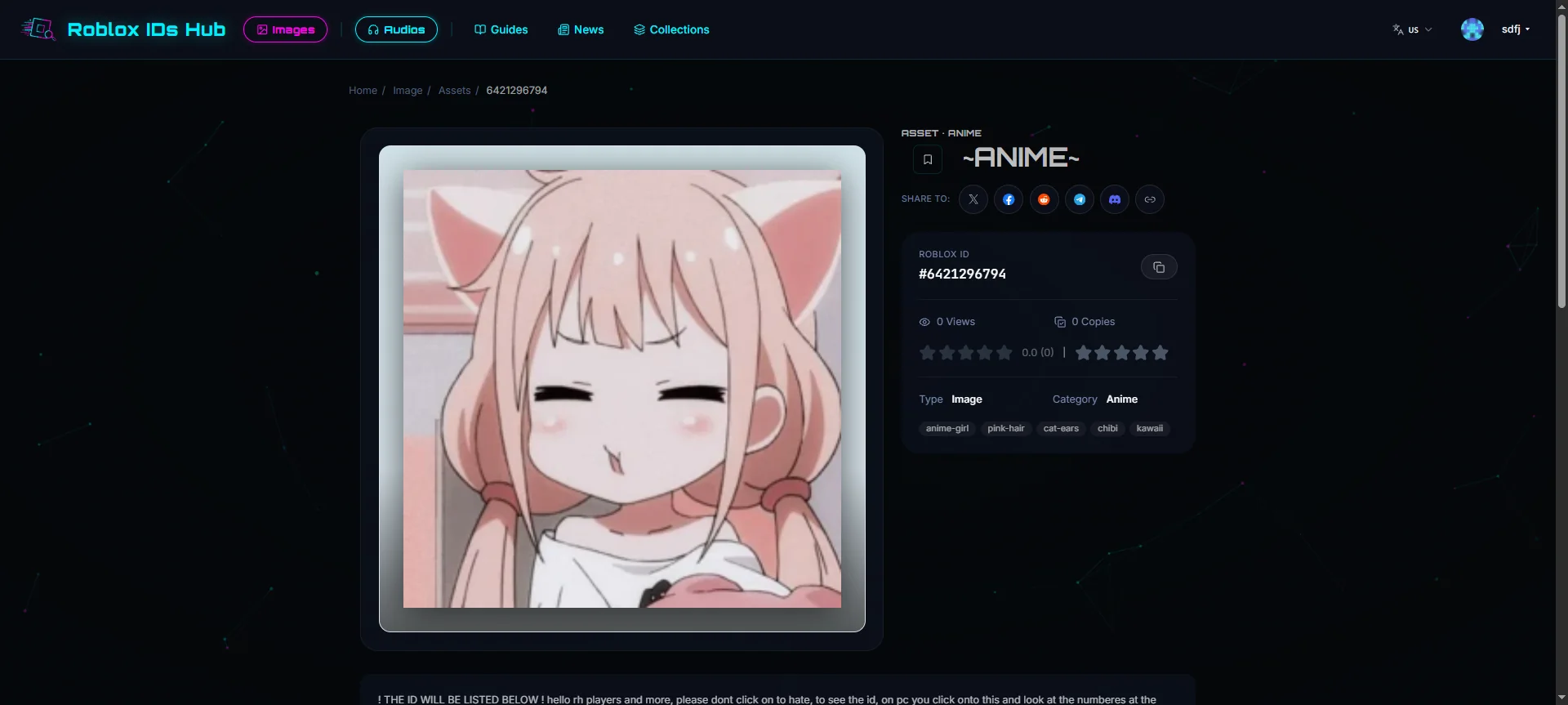
Page composition:
Breadcrumb navigation (top);
Hero area: left side shows the large image (click to zoom) or audio player; right side shows:
Title + favorite button (bookmark icon, login required);
Share button group (see below);
Metadata sidebar: Roblox ID (with copy button), view count, copy count, rating (stars, ratable), type, category, tags; audio additionally shows duration / Genre / subcategory / bitrate / file size / sample rate;
Description text (if any);
Previous / next asset navigation;
Comments section (see below).
Sharing
The detail page lets you share the current asset. Channels include: X / Twitter, Facebook, Reddit, Telegram (opens the corresponding share page), Discord and "Copy link" (copies the current page URL to your clipboard).
Comments and Ratings
Rating: rate with stars in the metadata sidebar (login required);
Comments: must be logged in to post; supports replies to other comments; single comment max 5000 characters; please follow the Community Guidelines before commenting (see Section 12).
Detail pages are not indexed by search engines (noIndex/noFollow); search weight is concentrated on category landing pages.
8. Content Sections: Guides / News / Collections
Three content sections with identical structure, differing only in focus:
Section | Path | Content Focus |
|---|---|---|
Guides |
| Guides / tutorials |
News |
| News / announcements |
Collections |
| Curated collections / themed roundup articles |
Section List Page
Article card list (title + excerpt + publish date); click to open the detail;
9. Sign Up and Sign In
Sign up and log in to use favorites, comments, ratings, shared collections, and more.
9.1 Sign Up /signup
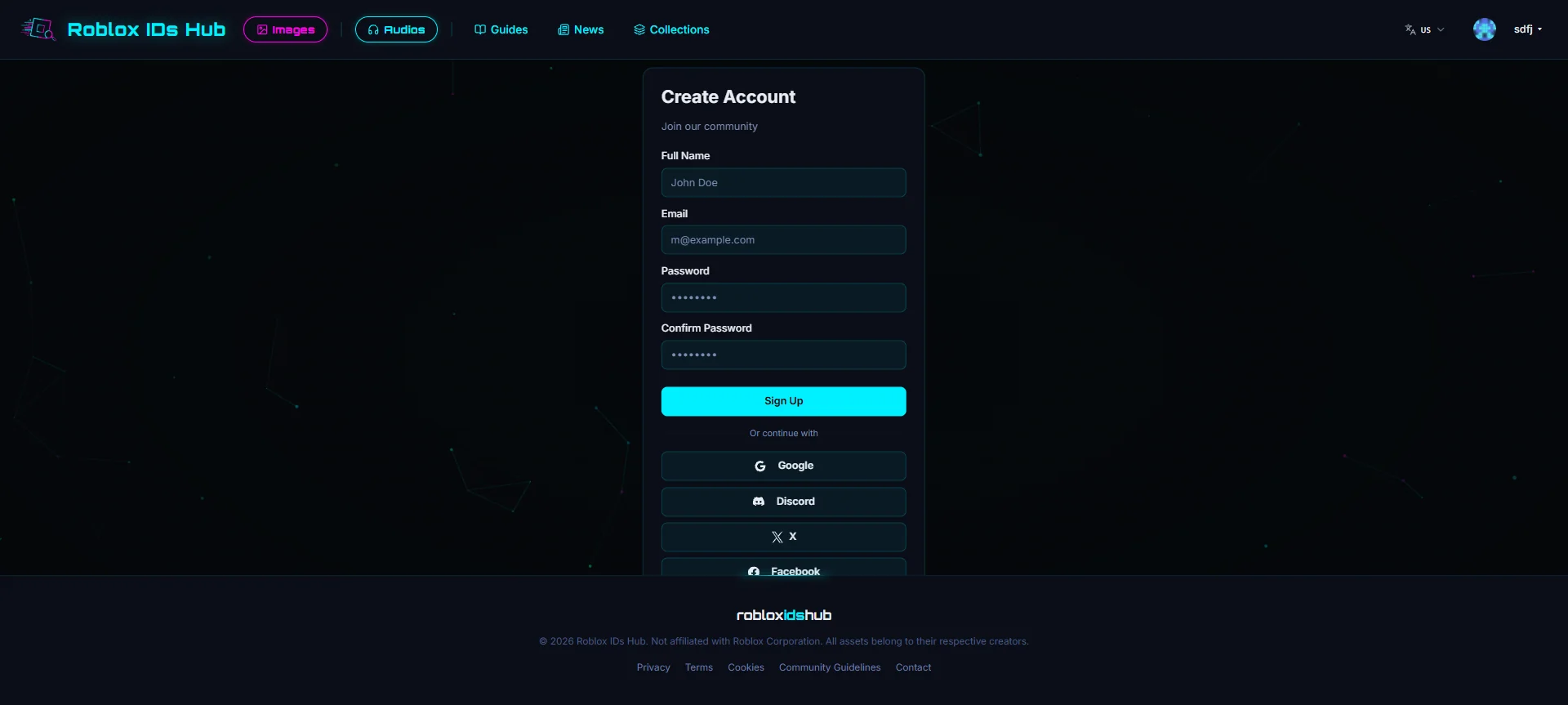
Two methods:
Email sign-up: fill in name, email, password, confirm password. Password must be 8–128 characters; the frontend validates each field in real time (name required, email format, passwords match). On success you're automatically logged in and redirected back to the homepage.
Third-party OAuth: one-click sign-up with Google / Discord / Twitter. If the email already exists it automatically becomes a login; new emails are registered automatically — no need to distinguish manually.
9.2 Sign In /signin
Email + password login;
Or OAuth (Google / Discord / Twitter) one-click login;
After a successful login you're redirected back to the source page (URL
?redirect=parameter, defaults to homepage).
⚠️ If your account is banned or inactive, a red warning appears at the top of the page (bans show a reason; inactive accounts are prompted to contact an administrator).
⚠️ The login page has a "Forgot password?" link, but the password reset page is not yet live (clicking it currently leads nowhere). To reset your password, please use "Contact Us" (see Section 12).
9.3 Sign Out /signout
Visiting this page automatically signs you out, shows "Logging out…", and redirects back to the homepage when done.
10. Personal Center (/me)
The entire /me area requires login. Visiting while logged out redirects you to the login page; after login you're automatically sent back to the original page. All Personal Center pages are excluded from search engine indexing (privacy protection).
10.1 Dashboard /me
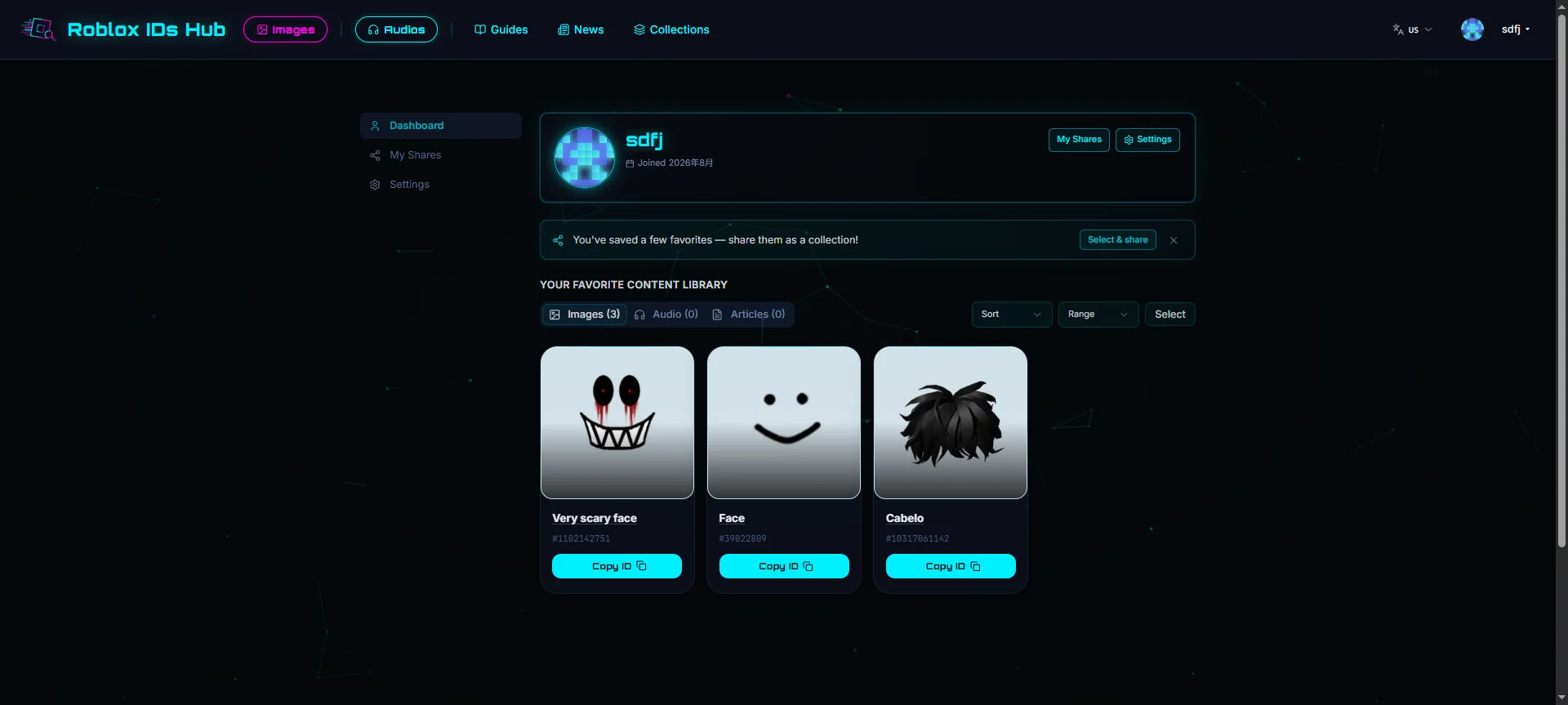
Top profile card: avatar (a geometric placeholder generated from your user ID if none uploaded), display name,
@username, bio, join date; right side has "My Shares" and "Settings" entries;Favorites library: split into Images / Audio / Articles tabs (with count badges), showing your favorites as a card grid, audio table, and article cards respectively;
Sort / filter: Sort (Newest/Oldest), Range (All time / Last 7 days / Last 30 days); state synced to the URL;
Copy ID: image cards support direct copying;
Multi-select and batch actions: click "Select" to enter check mode, then batch delete, or Share selection (bundle the selected favorites into a collection — see below). Multi-select is capped at 100 items; switching tabs clears the selection.
10.2 Profile Settings /me/profile
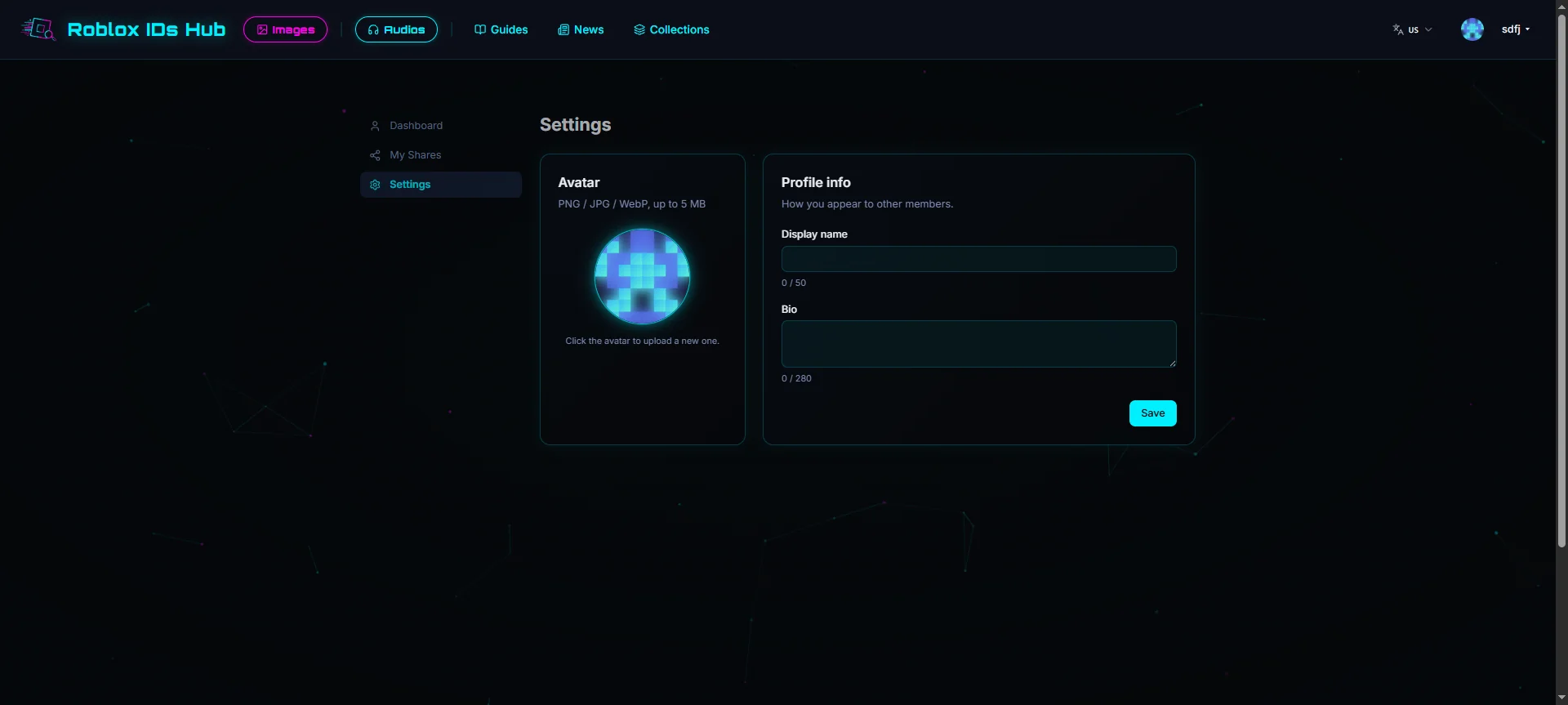
Change avatar: click the avatar to upload; supports PNG / JPG / WebP, max 5 MB, takes effect immediately after upload;
Edit profile: Display name (required, 1–50 characters), Bio (max 280 characters), with character counters; click "Save" to save.
10.3 My Shares /me/shares
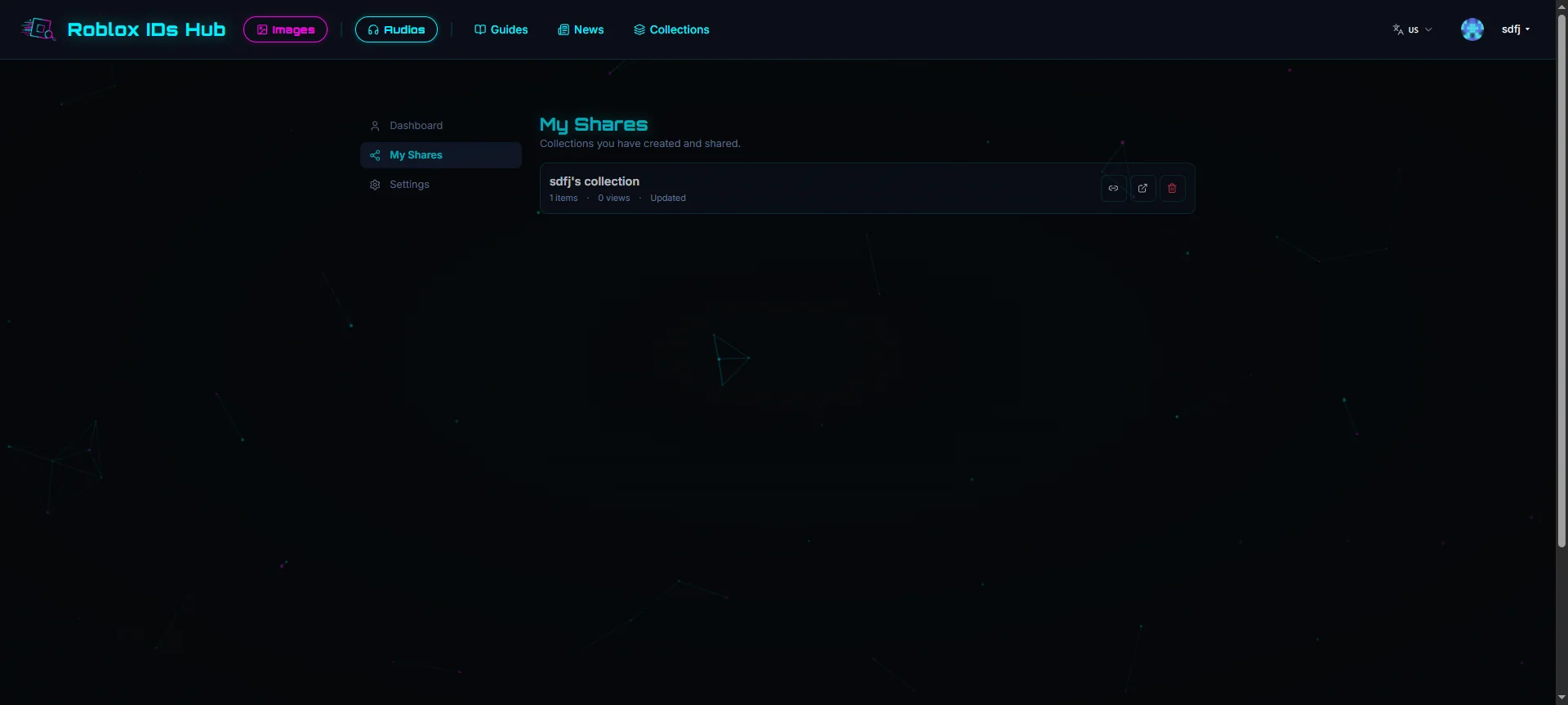
Manage the shared collections you've created:
List shows: title, item count, view count, update time, note;
Each entry supports: Copy link (generates a
/s/<slug>short link), Open (view the public collection in a new tab), Delete (requires confirmation; permanent and unrecoverable);Pagination (12 per page).
11. Shared Collections (/s/xxxx)
This is a public collection page generated when a user bundles their favorites, accessed via the short link /s/<slug>; no login required to view.
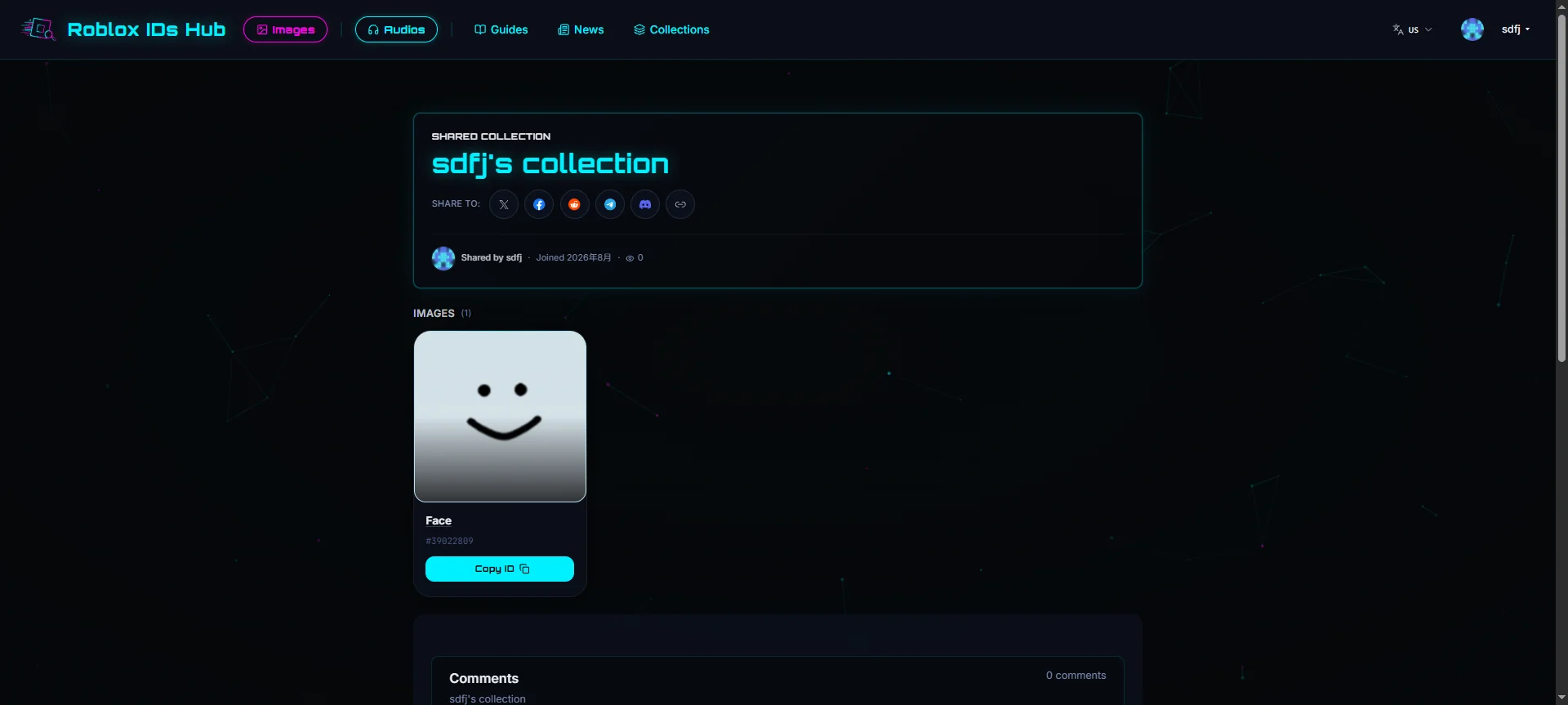
Header: collection title, note, share buttons, creator info (avatar / name / @username / join date), view count;
Content grouped into three types: Images (image cards, ID copyable), Audio (audio table, preview/copy), Articles (article cards); clicking any item jumps to its detail page;
Comments section: visitors can view; logged-in users can comment.
How to create a collection: on the /me dashboard, check favorites → click "Share selection" → generate the collection → go to /me/shares to copy the public link and share it with others.
12. Policies and Contact
The footer provides the following policy and contact pages:
Page | Path | Content |
|---|---|---|
Privacy |
| Privacy policy: how personal information is collected, used, and protected (including Google Analytics, AdSense, OAuth, account deletion) |
Terms |
| Terms of use: account terms, prohibited conduct, disclaimers, limitation of liability |
Cookies |
| Cookies policy: use and management of cookies and similar technologies |
Community Guidelines |
| Community guidelines: comment rules and content moderation, user conduct standards |
Contact |
| Contact us (see below) |
Contact Us
Unified contact email: support@robloxidshub.com
By purpose:
General support: general questions about the site;
Account and privacy requests: delete account, delete personal information, inquire about account-related information, privacy concerns (please provide enough information to locate the account);
Copyright and content removal (DMCA): if you are a rights holder and believe content indexed on this site infringes your rights, please write to us and include: identification of the infringing material, proof of your rights, etc. This site indexes Roblox asset IDs and metadata from public sources and claims no ownership of any third-party content.
13. Frequently Asked Questions (FAQ)
Q: What is a Roblox Image ID / Decal ID?
A: It's the numeric identifier corresponding to an image asset on Roblox. Players also commonly call it a Decal ID, Image Code, Picture ID, etc. — these terms are generally interchangeable.
Q: What is a Roblox Audio ID / Sound ID / Music ID?
A: Similarly, it's the numeric identifier for an audio asset; the different names (Sound ID, Music ID, Audio Code) usually refer to the same thing.
Q: Do I need to register to use this site?
A: No. Searching, browsing, listening, and copying IDs all work without registration. After registering you can favorite, comment, rate, and share collections.
Q: Are these IDs free?
A: Searching and browsing on this site are free. But whether an asset can be used in your game or Studio depends on Roblox's systems, asset permissions, and usage restrictions.
Q: How do I use an ID in Roblox Studio?
A: For properties that support asset references, you can usually use the rbxassetid://YOUR_ID format. Please refer to the requirements of the specific Studio property or experience.
Q: Why can't some audio be previewed?
A: Some audio files are Roblox private assets, so online preview may fail, but their IDs can still be copied.
Q: Will my comments / favorites be indexed by search engines?
A: The Personal Center (/me) and shared collection pages (/s) are not indexed by search engines; asset detail pages and search pages are not indexed either.