
You copy a Roblox picture ID, paste it into a game, and get a blank image. The number might be correct. The problem could be the asset type, the format the game expects, or whether the experience can access the resource.
The distinction to remember is this: asset ID is the general term, while image ID and decal ID refer to particular types of assets. Related assets can show the same artwork without sharing the same number.
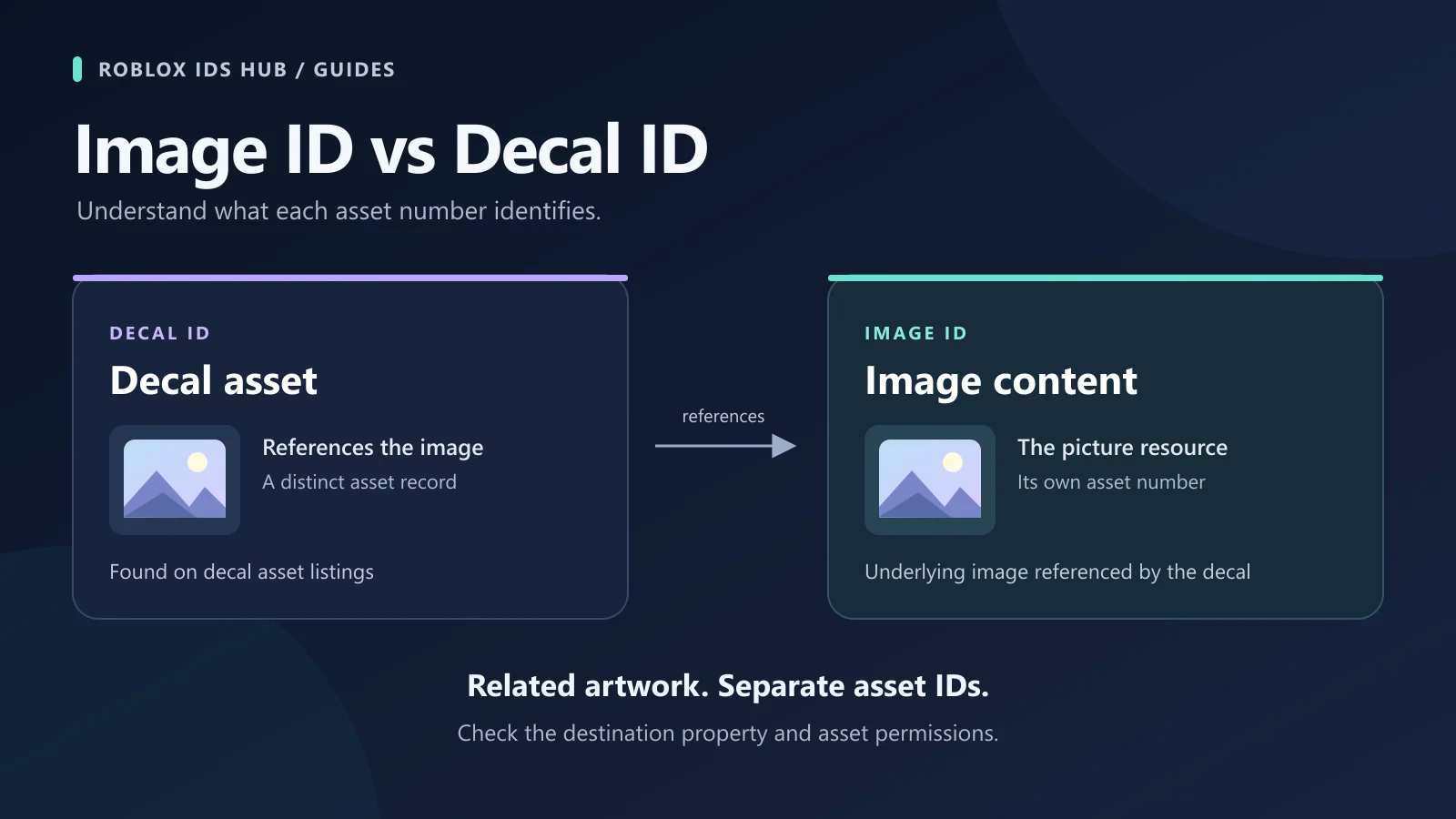
Image ID, decal ID, and asset ID explained
Term | What it identifies | Where you might encounter it |
|---|---|---|
Asset ID | A Roblox cloud asset | Image, audio, model, and other asset records |
Image ID | An image asset | Image records and properties that display image content |
Decal ID | A decal asset | Creator Store decal listings and game inputs that accept decals |
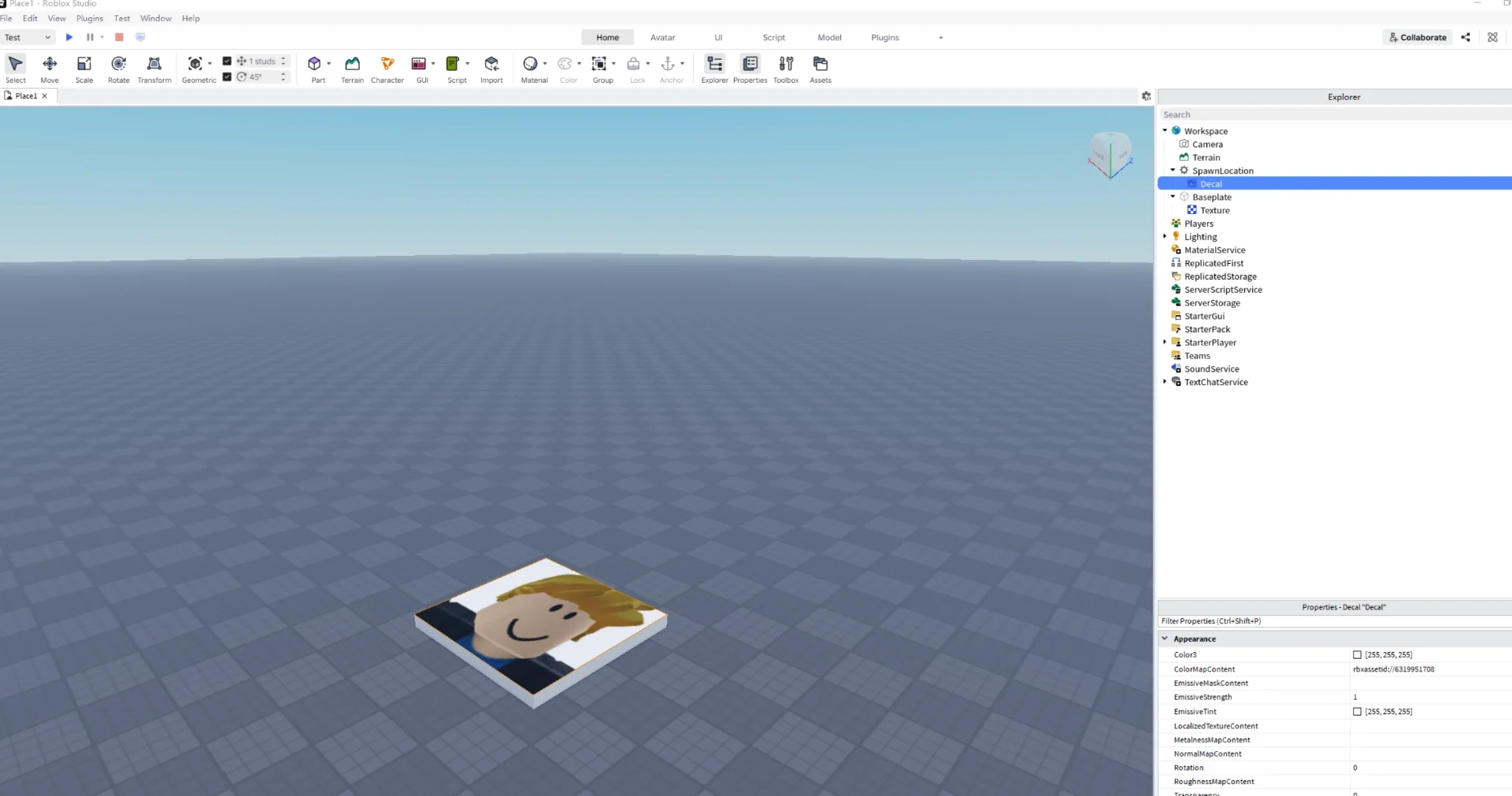
There is another source of confusion: Decal is also the name of a Studio object. An asset in the Creator Store and an object in your scene are different things. You can create a Decal object, then assign the image content it should display.
A decal can reference an underlying image asset. That relationship does not give you a formula for converting one ID into the other.
Can an ImageLabel use a decal ID?
Do not assume that a decal reference will always fail in an ImageLabel. Roblox’s ImageLabel documentation describes support for decal and image references. A blank UI image alone does not establish that you copied the wrong asset type.
Check the reference, resource availability, experience permissions, and display settings before deciding that the number needs to be converted.
A custom image field inside someone else’s game can behave differently. The game may accept a particular asset type, restrict available images, or process the number through its own system. Studio support does not guarantee identical behavior in every experience.
One number, three different formats
Roblox’s asset documentation uses 7229442422 as an example asset reference. The following examples show different ways to represent that number; they are not three different assets.
Format | Example | Purpose |
|---|---|---|
Numeric ID |
| An input that asks for digits only |
Asset URI |
| A property that accepts this resource-reference format |
Asset page address |
| Opening the asset page in a browser |
Adding rbxassetid:// changes how you reference the asset. It does not change its type, grant permission, or restore a removed resource.
Likewise, a browser page address is not automatically the right value for a Studio property or an in-game image field.
How to choose the right ID
Start with the destination. If a game asks for a numeric decal ID, follow that game’s instructions. If you are building a UI in Studio, check the property you are assigning, such as ImageLabel.Image.
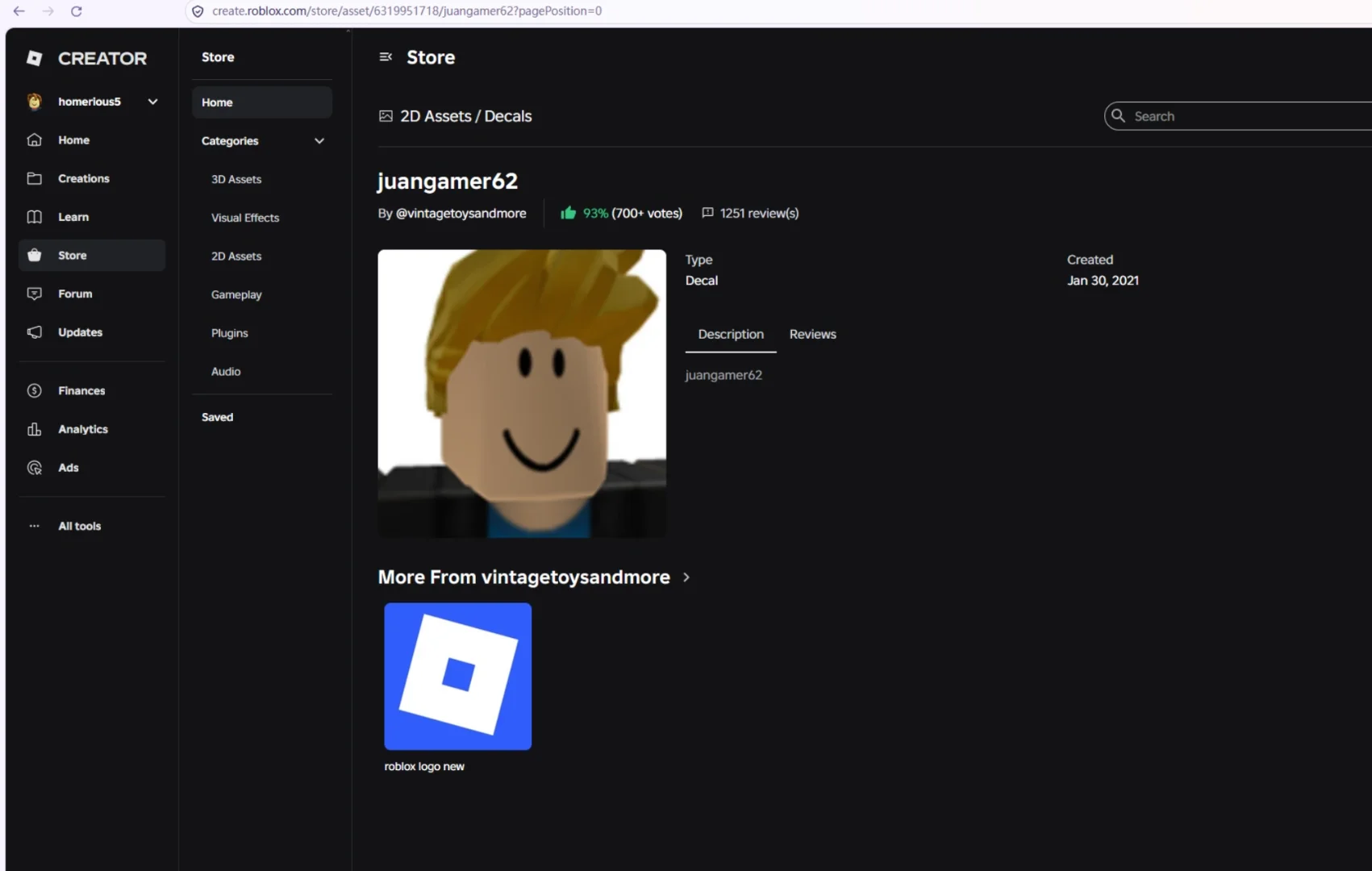
Next, confirm the resource itself. For your own uploads, find the relevant image or decal record in Creator Dashboard and copy its asset ID. For Creator Store assets, inspect the listing and preview before inserting the resource into a test place.
You can also browse the Roblox image library or Background category to find pictures. The copied number identifies the indexed resource; it should not be assumed to be a separately resolved underlying image ID.
Find an ID from the source you already have
The quickest route depends on whether you have a link, one of your own uploads, or only a picture. Identify that starting point before looking for a conversion tool.
You have a Creator Store link
Look for the numeric segment immediately after /store/asset/. The words after the number describe the listing; they are not part of the ID. Query parameters added to a shared link are not part of the number either.
Open the page before using it. Confirm the title, preview, and asset type instead of copying every number you see in the address. A page for an avatar accessory or a game is not an image listing simply because its URL contains digits.
If an older link redirects, inspect the destination. Keep the final asset page alongside the copied number so you can return to the exact resource later.
You uploaded the artwork yourself
Find your asset in Creator Dashboard under the relevant development-item type. Check the ownership context as well: a personal upload and a group-owned resource can appear in different places.
Use the asset’s copy-ID action and keep its title with the number. If you see related Image and Decal records with the same artwork, do not identify them by thumbnail alone. Record which type each number belongs to, then choose the reference supported by your destination.
You only have a screenshot or local picture
A screenshot does not automatically reveal a Roblox asset ID. Ask the person who shared it for the asset link, or search for the subject and compare the results.
A local file also does not acquire a Roblox ID simply because you rename it with a number. For artwork you are entitled to upload, use Roblox’s import process and obtain the resulting resource reference. For an existing community image, locate its actual listing rather than borrowing an unrelated number from a similar-looking picture.
Three everyday situations that explain the difference
A player wants to change a framed picture
Suppose a decorating game offers a picture field labeled “Decal ID.” Start with the resource number and the game’s instructions. If the field expects digits, a full Creator Store address can be rejected even when it points to the right artwork.
If the number is accepted but the frame stays blank, inspect the resource and the game’s restrictions. A different input format, an unavailable asset, or a game-specific rule may explain the failure. The symptom alone does not prove that you need a different underlying image record.
A builder wants the same artwork in a menu
Now suppose you want that picture inside an ImageLabel. You are no longer using the decorating game’s input handler; you are setting a Studio property.
Assign a reference supported by that property and check the result in a simple interface. If the image loads, inspect its proportions and transparency before placing it in a busy menu. If it fails, examine the reference and access errors. Returning to a game-specific decal tutorial may not address this different context.
Two collaborators share one image
One creator can see a resource and assumes a collaborator’s group project can use it too. The copied number is correct, but the project still needs appropriate access.
This is a permissions question rather than an arithmetic conversion question. Keep track of the asset owner, the project owner, and the resource being shared. That makes it easier to identify whether the collaborator received the right reference and whether the intended experience can load it.
Asset type, access, and display are separate checks
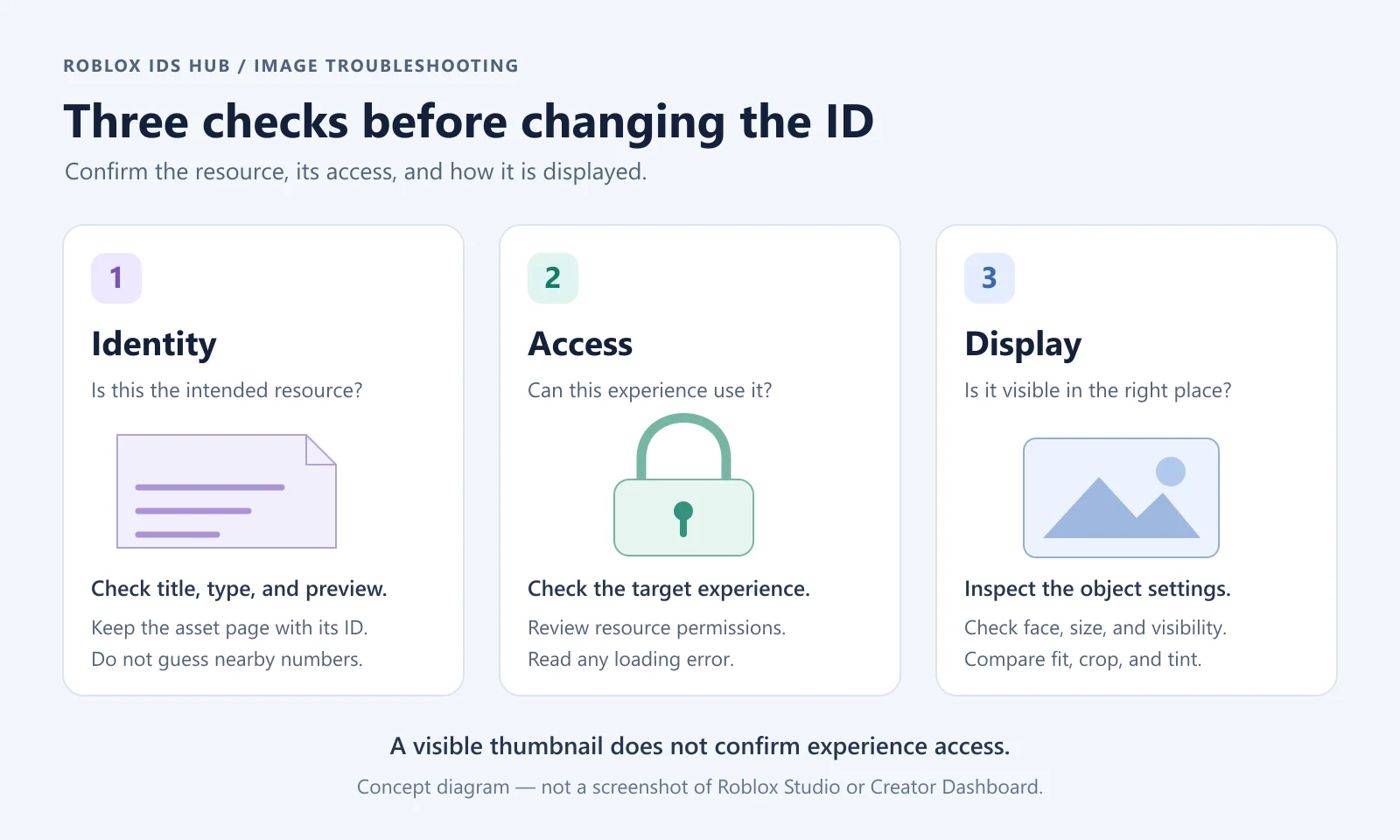
It helps to treat these as three questions rather than one:
Check | Question to answer | Useful evidence |
|---|---|---|
Identity | Is this the intended image or decal resource? | Asset type, title, preview, and source page |
Access | Can this experience use the content? | Asset configuration and actual loading results |
Display | Is the loaded content visible in the right place? | Object hierarchy, properties, and the rendered result |
Roblox’s asset privacy documentation distinguishes restricted resources from those available for open use. It also explains that visible metadata does not establish permission to load the content. That is why a resource title or preview cannot settle every access question.
Once an image loads, the ID has done its job of locating content. Stretching, cropping, tinting, or a picture appearing on the wrong face points you toward display settings. Replacing the number will not necessarily improve any of those.
For example, a portrait placed in a very wide frame may look distorted even though the reference is correct. A fully transparent image element can appear empty with a valid asset assigned. These outcomes look different from an incorrect resource when you inspect the object rather than just the finished screen.
Keep a useful record when you share an ID
Share the asset page and a brief description of what the number represents. “Pink floral decal listing” is more useful than an unexplained string of digits, especially when someone saves several similar images.
For a build you plan to maintain, record the resource title, asset type when confirmed, source URL, and the component where you used it. Keep any related image and decal numbers in separate labeled fields rather than overwriting one with the other.
Also record what a successful test actually established. “Displayed in this ImageLabel in this experience” is a specific observation. “Works everywhere” is a much broader statement that the same test cannot support. A clear record helps when the asset later changes availability or another creator tries it in a different game.
Why subtracting one is not a reliable conversion method
Do not treat “decal ID minus one” as an image-ID converter. Nearby numbers do not prove a relationship between assets. Trying adjacent IDs can load unrelated resources rather than the picture you wanted.
If you need the underlying image record, obtain it from an identifiable asset record or reference. When you cannot establish the relationship, use the destination’s supported asset-selection workflow instead of guessing numbers.
Also avoid copying a thumbnail CDN address as the asset ID. A thumbnail is a preview representation, and its URL serves a different purpose from an asset URI. Roblox’s rbxthumb format is useful for thumbnails, but it is not interchangeable with rbxassetid in every context.
Check an old ID list against the actual resource
An old list may contain the right number under the wrong caption, or group different resource types under one informal heading. Treat its description as a lead rather than the final identification of the asset.
Open the corresponding resource and compare the visible artwork with the example you intended to use. Look at the subject, colors, lettering, and composition. Two pictures can look similar in a tiny thumbnail while containing different text or a different character pose.
Next, inspect what the number identifies. A successful page load does not prove that you found an image asset, and a picture appearing somewhere in Studio does not prove that it is the intended artwork. Keep the listing title and type with the number while you test it.
If someone provides both a decal number and an image number, ask for the source of that pairing. Verify each record or the actual reference relationship instead of accepting the pair because the digits are close. A claimed conversion is only useful when it leads to the content and resource type you need.
Finally, save the result in a way another person can understand. Include the resource link, the destination you tested, and any conditions relevant to using it. This turns a loose list of numbers into a reference you can check again when a picture changes availability or a teammate uses it elsewhere.
What to check if the image is still blank
Work through these checks in order:
Remove accidental spaces and confirm that you pasted the expected format.
Confirm the asset type and check whether the resource is still available.
Check whether the experience has permission to use it.
Inspect the object’s transparency, size, placement, and visibility.
For a Decal, check the selected face of the part.
For a UI image, check its hierarchy and whether another element covers it.
A thumbnail loading on a website does not rule out an access problem inside the target experience.
Frequently asked questions
Are image codes and picture IDs different from image IDs?
Players often use these names for image-related asset numbers. The resource type and destination’s requirements matter more than the informal name used in a list or tutorial.
Does adding rbxassetid:// fix a broken image?
It can correct a format mismatch when the property expects an asset URI. It cannot fix missing permissions, moderation issues, or an unavailable resource.
Does copying an ID give me ownership of the picture?
No. Finding an asset number does not transfer ownership or grant unrestricted rights to use the artwork.
Where should I look for more images?
Start with the image library, choose a category, and inspect each preview before copying its ID. Test the selected resource in the place where you intend to use it.